

How to Connect the Quark-elec A053T to Garmin Navionics (AIS Setup Guide)
Jul
Want to display live AIS vessel targets inside the Garmin Navionics Boating app from your A053T?
This guide shows how to connect the Quark-elec A053T Portable Class B AIS Transponder to Garmin Navionics over Wi-Fi in just a few steps. Once connected, AIS traffic will appear directly on your chart view, helping improve awareness on the water without requiring a fixed chartplotter.
What You’ll Need
- Quark-elec A053T Portable Class B AIS Transponder
- Garmin Navionics Boating app (iOS or Android)
- Smartphone or tablet
- Active Navionics subscription
- A053T configured with a valid MMSI
Why Connect AIS to Garmin Navionics?
Connecting AIS data from your A053T allows the Garmin Navionics app to receive vessel information directly over Wi-Fi.
Benefits include:
- View nearby vessel traffic in real time
- Improve situational awareness
- Use a portable navigation setup
- Add AIS functionality without dedicated chart hardware
Step 1: Power On the A053T
Switch on your A053T and allow it to initialise.
The device will begin broadcasting its Wi-Fi network.
Typical factory settings:
Wi-Fi SSID: A053Txxxx
Password: 88888888
If you customised your network settings previously, use your updated credentials.
If you haven’t setup your device, please refer to our setup video below
Step 2: Connect your device to the A053T Wi-Fi
On your phone or tablet:
- Open Settings → Wi-Fi
- Select the A053T network
- Enter the password
- Confirm the device connects successfully
Remain connected before opening Garmin Navionics.
Step 3: Add the A053T as a device in Garmin Navionics
Open Garmin Navionics.
Navigate to:
Menu → Connect a Device → Add Device
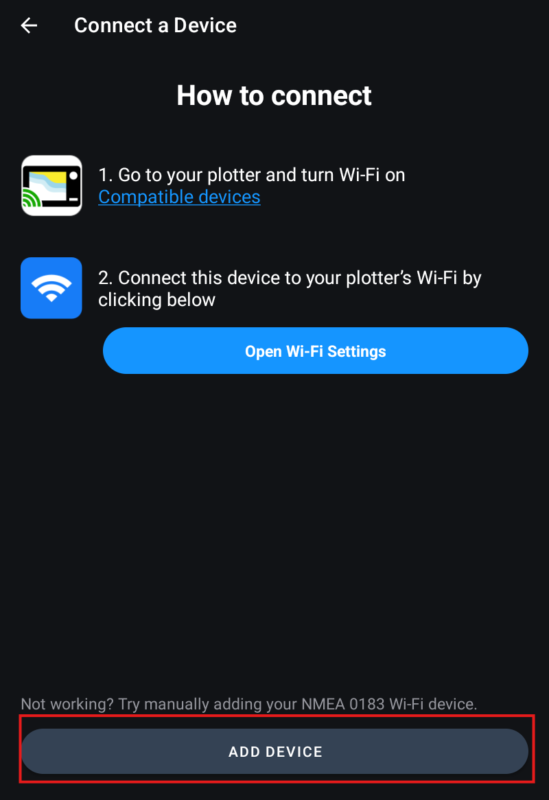
Enter:
IP Address: 192.168.4.1
Port: 2000
Connection Type: TCP
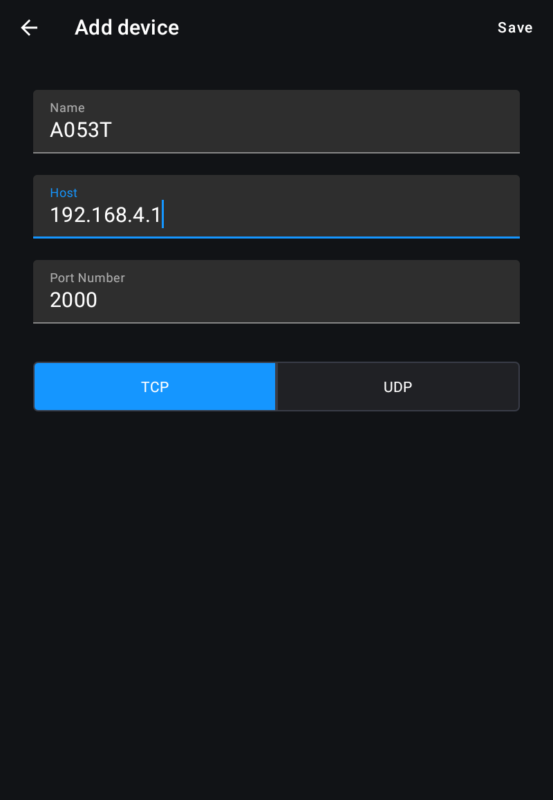
Save the settings.
Please note – If you have configured your A053T to connect via your router, enter those IP details instead.
Step 4: Confirm AIS Targets Are Displayed
Return to the chart screen and select menu.
Select Menu → Map Options → AIS Settings
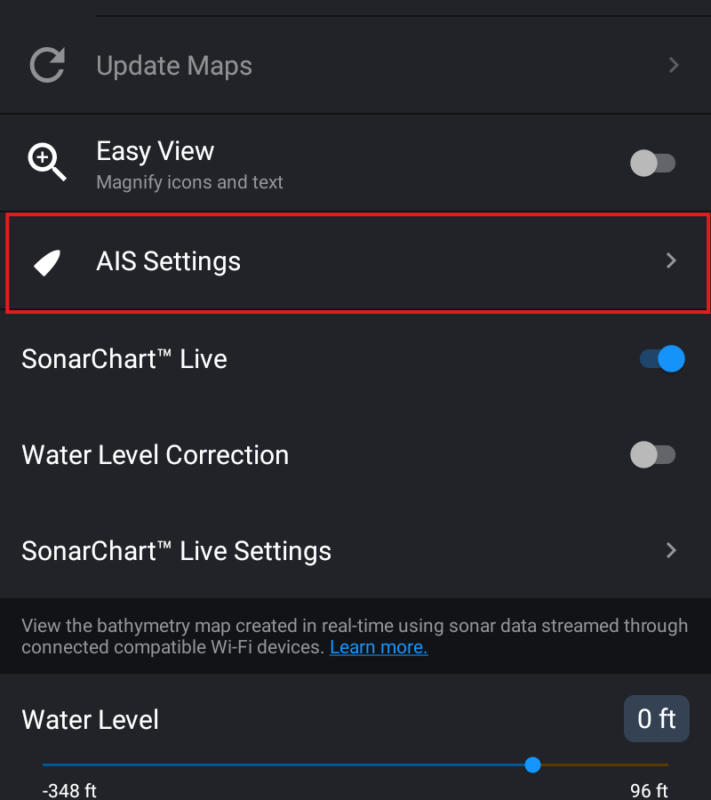
Enable “Display AIS Targets”
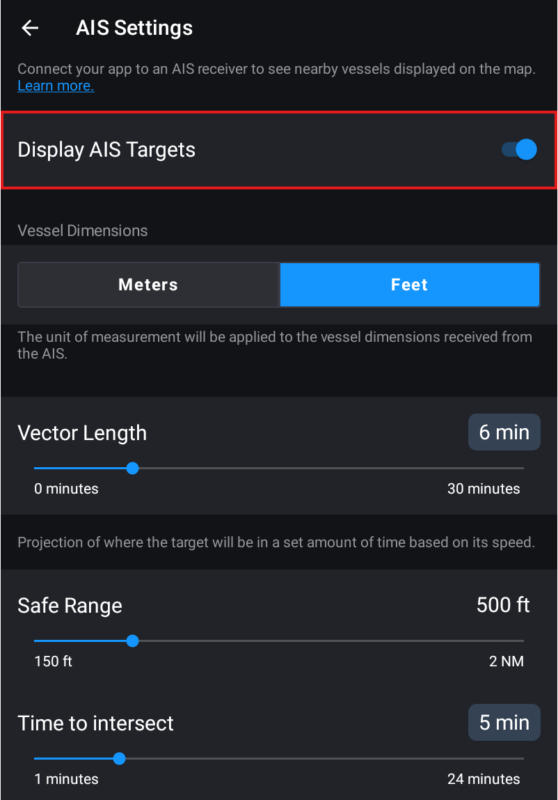
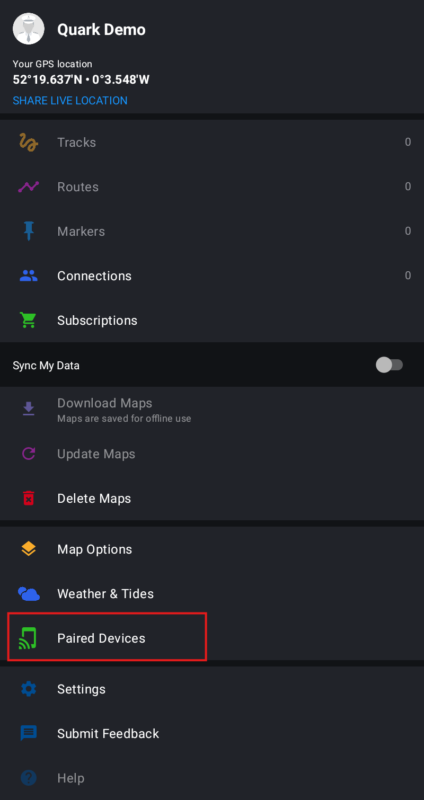
Select Menu → Paired Devices → AIS Settings
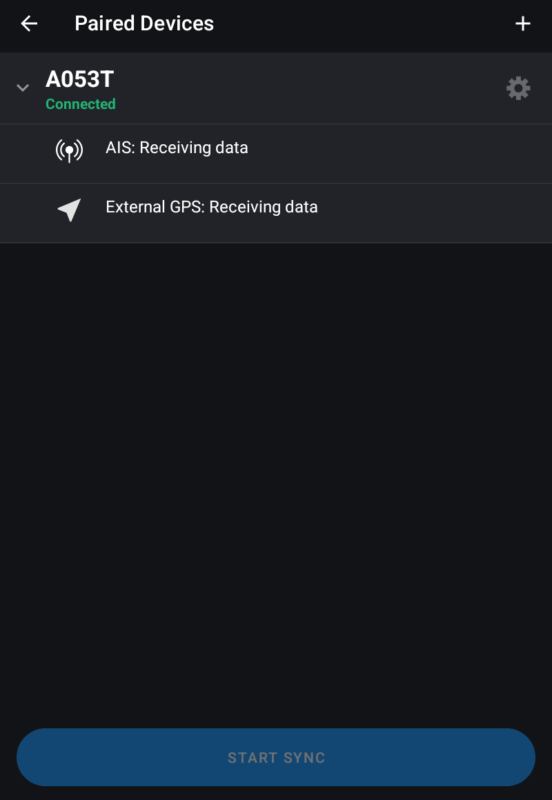
Here you will see the confirmation of AIS and GPS being received from the A053T
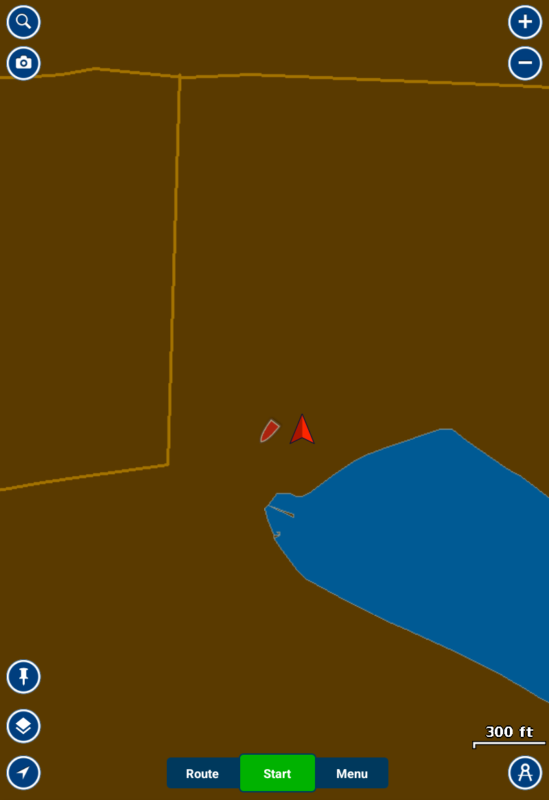
After AIS messages begin arriving:
- Vessel icons will appear on the chart
- Selecting a target will show vessel details
- Data refreshes automatically as traffic updates
If no traffic appears immediately, move to an area with active AIS coverage.
Below is an example of live AIS traffic received on the chart.
Troubleshooting Garmin Navionics AIS Connection
Garmin Navionics Shows “Disconnected”
Try the following:
- Verify Wi-Fi remains connected to A053T
- Confirm IP address and port
- Restart the app
- Reboot the transponder
No AIS Targets Appear
Check:
- GPS is active
- AIS transmission is operating
- Chart zoom level is appropriate
- AIS overlays are enabled
Device Connects but Data Stops Updating
- Disable mobile data temporarily (some devices switch networks automatically)
- Reconnect Wi-Fi
- Confirm no IP settings were changed
Frequently Asked Questions
Does Garmin Navionics support AIS over Wi-Fi?
Yes. Garmin Navionics can receive AIS data from compatible external devices over a network connection.
What protocol does the Quark-elec A053T use?
The A053T outputs marine data over TCP using standard networking settings.
Can I use Android and iPhone?
Yes. Garmin Navionics supports both platforms.
Do I need internet access?
No. The phone connects directly to the A053T Wi-Fi network.
Can I use this without a chartplotter?
Yes. The setup works directly between the A053T and the Garmin Navionics mobile app.
